


Introduction
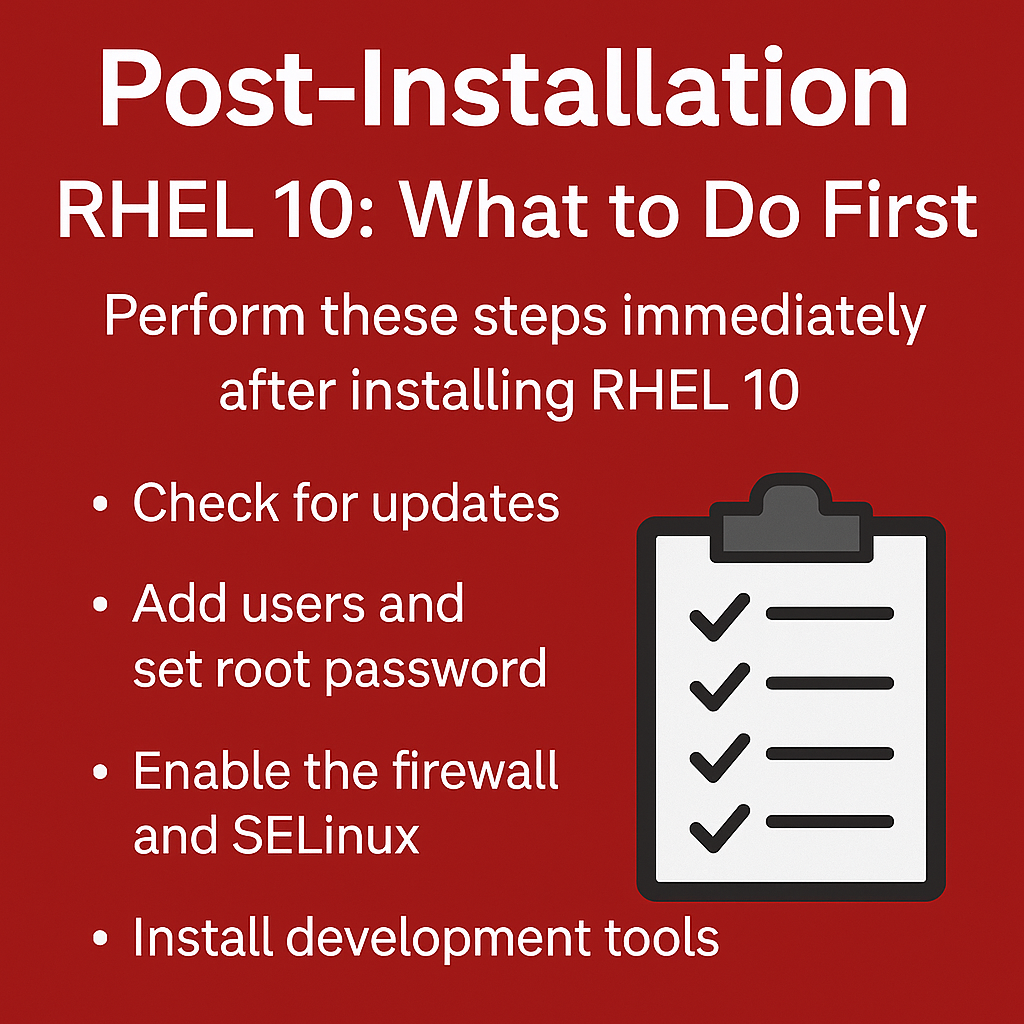
So, you’ve successfully installed RHEL 10—congrats!, your journey has just begun. This post-installation RHEL 10 guide walks you through the essential tasks you should perform right away—like setting up users, applying updates, and enabling vital services—to ensure your system is secure, stable, and ready for use.
1. Update Your System
sudo dnf update -y
Keeping your system updated is crucial for getting the latest security patches and software improvements.
2. Create a New Sudo User
Avoid using the root account directly.
adduser ghansham
passwd ghansham
usermod -aG wheel ghansham
This ensures safer system administration practices.
3. Configure the Firewall
RHEL 10 comes with firewalld pre-installed.
sudo systemctl enable firewalld --now
sudo firewall-cmd --permanent --add-service=ssh
sudo firewall-cmd --reload
You can also open ports for your applications (e.g., HTTP/HTTPS).
4. Install EPEL Repository
Extra Packages for Enterprise Linux (EPEL) provides useful packages not included in the base repo.
sudo dnf install epel-release -y
sudo dnf update -y
5. Install Essential Tools
sudo dnf install vim git curl wget net-tools htop unzip -y
This makes your life easier from day one.
6. Set Hostname and Timezone
sudo hostnamectl set-hostname rhel10.local
sudo timedatectl set-timezone Asia/Kolkata
Set this up based on your environment for logs and security accuracy.
7. Enable Flatpak or Snap (Optional)
Useful if you want modern GUI apps or development tools.
sudo dnf install flatpak -y8. Configure SELinux (if needed)
Keeping your system secure is a critical part of your post-installation RHEL 10 checklist. Start by enabling the firewall and setting SELinux to enforcing mode. SELinux is powerful, but can block services. Use permissive if you’re testing.
sudo setenforce 0
Warning: Don’t disable SELinux in production unless absolutely necessary.
9. Set Up SSH Key Authentication
For secure and password-less login:
ssh-keygen -t rsa
ssh-copy-id user@yourserver
10. Take a Snapshot (If VM)
If you’re using VirtualBox or KVM, now is a great time to take a snapshot of this clean state.
Internal Link Suggestion
Also Read: How to Download and Install RHEL 10 for Free (Developer Edition)
Outbound Link Suggestion
Conclusion
By following these post-installation RHEL 10 steps, you’ll ensure your system is optimized, secure, and ready for development or production workloads. These are the foundational steps every user should take right after installing RHEL 10. These not only improve your system’s performance and security but also prepare it for further deployment, whether for personal development or production use.
Bookmark this post and revisit it every time you spin up a new RHEL 10 instance!